


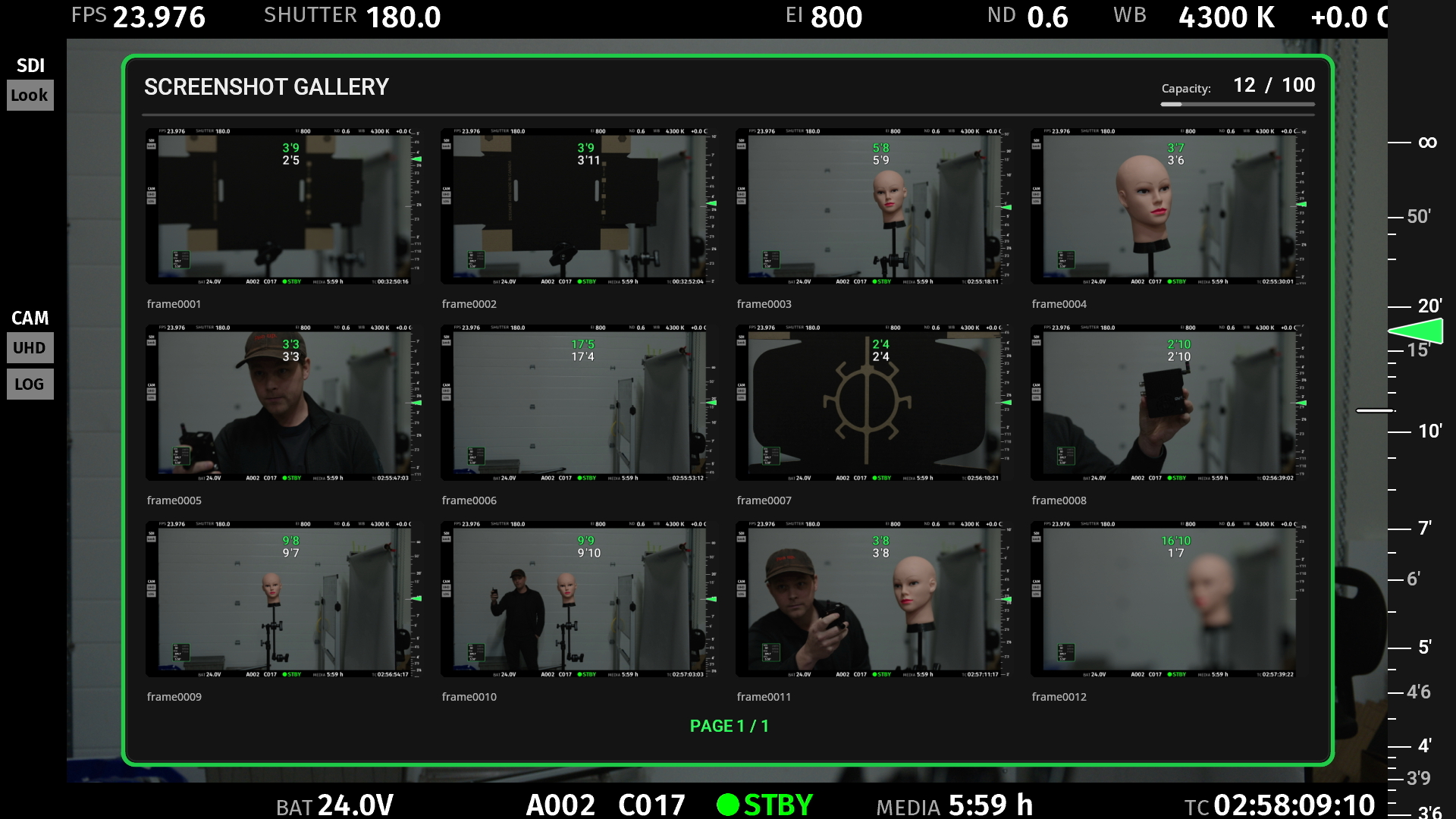
Capture, playback, and export footage and frame grabs on the OV1 itself, with no external recorder needed. Everything happens directly on device, meaning playback is instant and never slows down the set.
This is a beta feature and offered as a preview of a future stable release. It is possible that recordings or screenshots may be lost while we prove out this new functionality of the OV1.
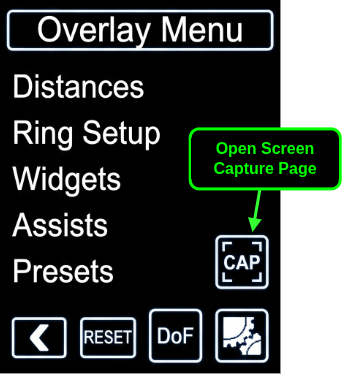
From the OV1 menu, press the new “CAP” button. Alternatively, press and hold the OV1 button from the home screen.
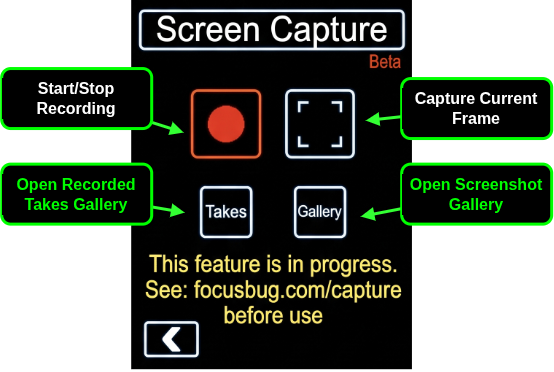
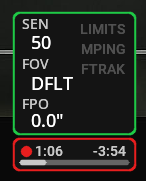
Press the red record button to start/stop a recording, or the screenshot button to capture the current frame.
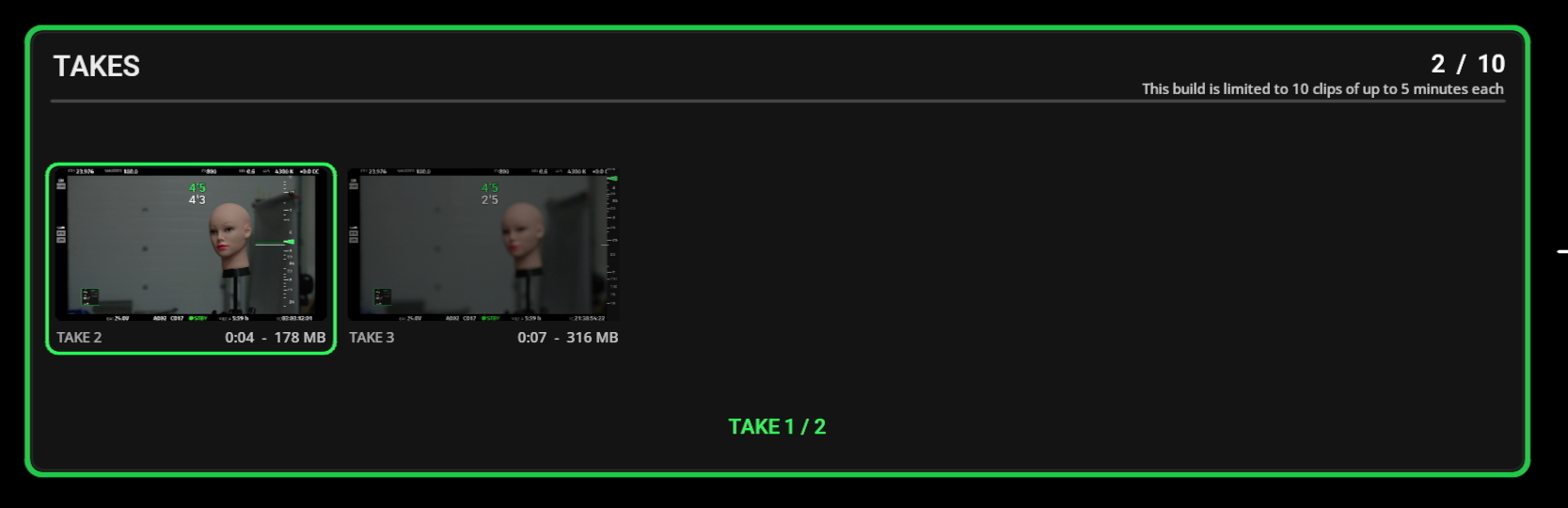
Press the “Takes” button to open the recorded takes gallery.
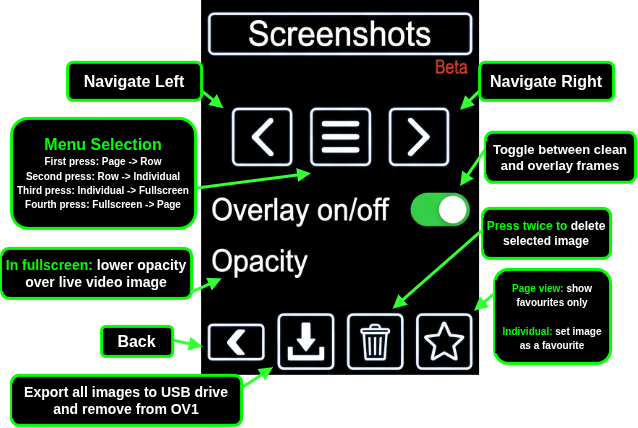
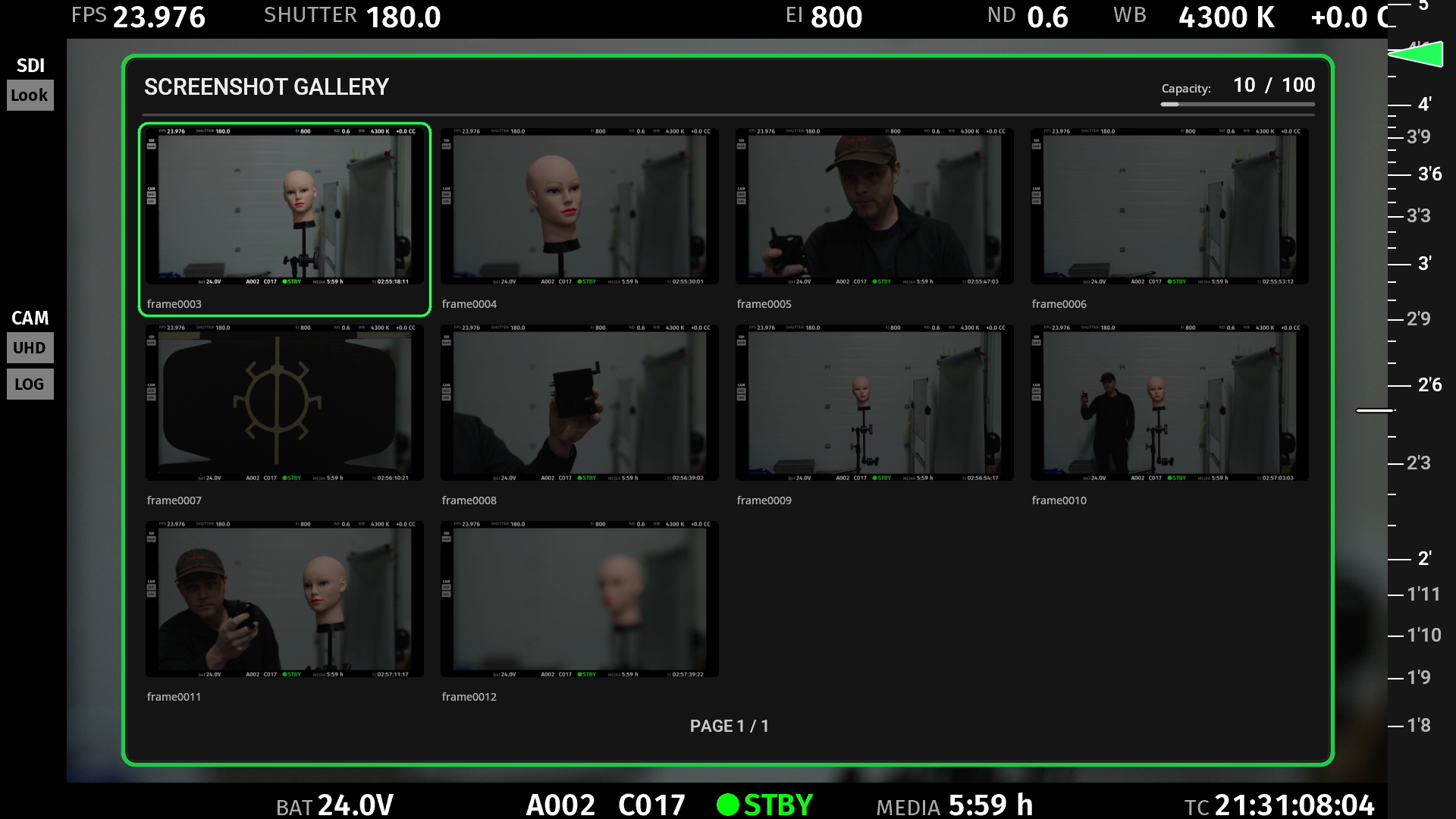
Press the “Gallery” button to open the screenshot gallery. Please note: pressing export will move all photos from the OV1 to a connected USB drive.
Screenshots can be captured as full-resolution stills and are saved both with and without overlay information which can be toggled on and off. Screenshots are browsed in a new “Gallery” window, can be marked and filtered as favourites, deleted, or exported off device onto a connected USB drive.
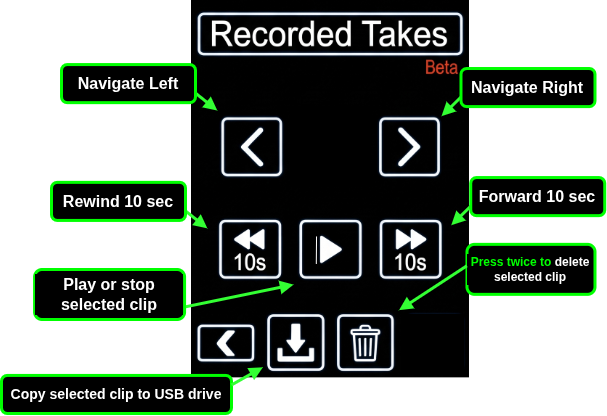
Recording allows live video capture of the monitor feed stored in a lossless format for reliable “focus monitor only” reviewing of a take. Takes are then navigated in a filmstrip browser on the focus monitor and can be exported individually to a connected USB drive as MP4 video files.